

Back pain has quietly become one of the most common complaints among remote professionals, often stemming from long hours spent in poorly designed home workspaces. Without proper work-from-home ergonomics, even small posture misalignments can strain muscles and joints, leading to chronic discomfort over time. An ergonomic chair, when chosen and adjusted correctly, can be a game-changer. It helps minimize the risk of musculoskeletal disorders and makes daily tasks more comfortable.
To help make that shift, here are six strategies backed by expert insight for preventing pain and improving comfort.
✔ An ergonomic chair with proper lumbar support is essential for maintaining spinal alignment in a home office.
✔ Work from home ergonomics reduces strain, boosts comfort, and supports long-term health.
✔ A Home Office Ergonomic Assessment can identify posture and setup issues before they cause pain.
✔ Seat height, depth, and armrest positioning directly affect back, neck, and shoulder comfort.
✔ Alternating between sitting and standing improves circulation and reduces muscle fatigue.
✔ Proper screen height prevents neck strain and supports healthy posture for extended computer use.
✔ Small adjustments—like adding a footrest or adjusting recline—can help reduce back pain while working from home.
✔ Applying the best ergonomic tips for laptop users helps create a balanced, portable-friendly workspace.
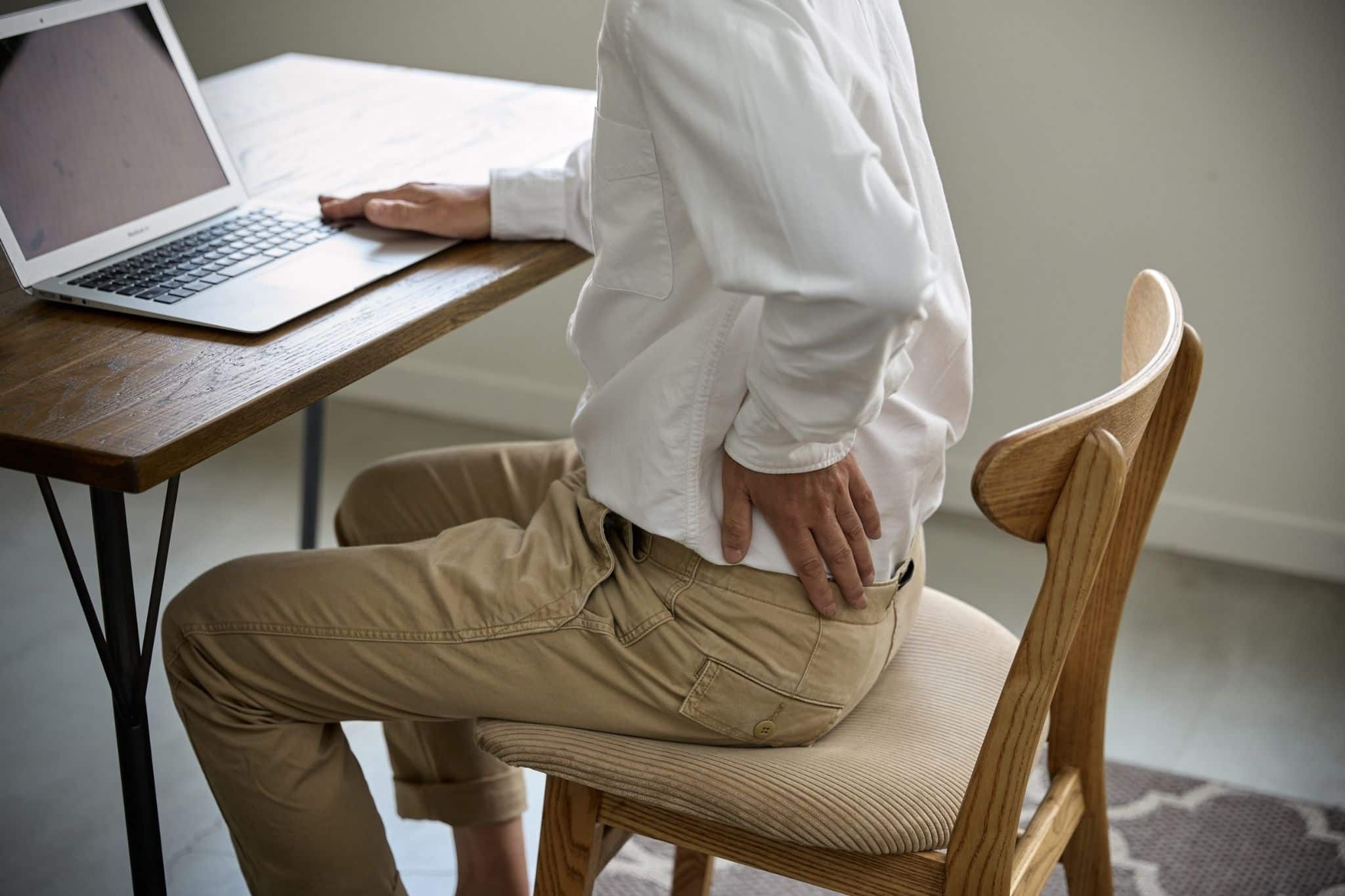
The right lumbar support can be the difference between an aching lower back and lasting comfort during long hours of desk work. Many remote setups skip this essential feature, leaving the spine to slump and muscles to overcompensate. A well-designed chair not only improves posture but also forms a solid foundation for better work from home ergonomics.
Seat depth plays a bigger role in work-from-home ergonomics than many realize. A poor fit can cut off circulation, strain the lower back, or force awkward sitting positions that gradually lead to discomfort. During a home office ergonomic assessment, this is one of the first areas experts evaluate.
Armrests may seem like a minor detail, but they directly impact shoulder, neck, and upper back health. The wrong height can quickly offset the benefits of even the best ergonomic chair for remote work. Armrest adjustments often make a significant difference for laptop users as well.
A well-fitted chair height is essential for balanced posture and reduced back strain. Even advanced chairs lose effectiveness if they’re too high or too low compared to the desk. A home office ergonomic assessment often reveals misalignments that are easy to correct.
Locking a chair into one position forces the spine to hold static pressure all day. A slight recline offers a break from upright posture and helps maintain spinal health.
A stylish chair may look appealing, but design alone cannot protect against discomfort. Skipping essential features like lumbar support or adjustability undermines posture and long-term health. Prioritizing the best ergonomic chair for remote work means choosing function before form.
Prolonged stress can manifest as physical illnesses—such as migraines, digestive issues, and cardiovascular problems—which often lead to frequent sick days. Using a laptop stand paired with an external keyboard and mouse can help counter these effects by reducing fatigue, improving posture, and making long workdays more comfortable.
When adjusted to individual height, task type, and comfort needs, this setup supports spinal health while maximizing the benefits of both sitting and standing.
An ergonomic chair should allow elbows to rest at a 90-degree angle when typing, even at a higher desk setting. For laptop users, this is easiest when the laptop is elevated to eye level and paired with an external keyboard. This is one of the best ergonomic tips for laptop users that also applies to desktop setups.
Standing desks can sit higher than standard desks, which sometimes means raising the chair. A footrest keeps hips and knees aligned, preventing dangling legs that can strain the lower back. This is especially helpful for laptop users working at kitchen tables or other non-adjustable surfaces, as it improves circulation and comfort.
Switching between sitting fully and perching at a high stool height changes spinal pressure points. Adjust lumbar support to maintain the natural curve of the lower back in each position. Laptop users should also ensure their screen height does not force them to hunch forward, as this negates lumbar support benefits.
Whether sitting or standing, the top third of the screen should be at eye level to prevent neck strain. A laptop riser or adjustable stand is ideal for achieving this height consistently. For those with an external, second screen, using a monitor arm makes it easier to adjust quickly without disrupting workflow. This small tweak reduces back pain while working from home by keeping posture consistent.
Remaining in one position for hours can create stiffness and fatigue, regardless of how ergonomic the setup is. Laptop users should take particular care to move every 30–45 minutes, as compact laptop keyboards and touchpads can cause repetitive strain more quickly than full-sized peripherals.
For standing desk setups, stools or chairs with a higher seat range and forward tilt often work best. These designs make it easier to transition between positions without strain. If using a laptop in multiple locations, choose the best ergonomic chair for remote work that’s supportive and portable.
A remote workspace doesn’t require expensive tools or professional gear to pass a home office ergonomic assessment—just awareness and a few practical checks are enough. By focusing on posture, workstation setup, and daily habits, anyone can spot and fix the issues that contribute to discomfort.
Applying these steps can make a noticeable difference in comfort while working from home:
Feet should rest flat on the floor, with knees and hips forming a 90-degree angle. If the chair is too high, use a footrest or a sturdy box to maintain alignment. This simple change is one of the easiest work-from-home ergonomics improvements to make without equipment. A quality ergonomic chair should allow easy height adjustments, so you don’t have to compensate with makeshift fixes.
Sit back fully in the chair and check if the lower spine is supported by the backrest’s curve. The best chairs have adjustable lumbar support that moves up or down to fit your natural spine curve. If your current chair lacks this, a rolled-up towel or cushion can help, but long-term comfort is best achieved with proper built-in support.
When seated, elbows should rest comfortably at desk height without reaching up or bending down. An ergonomic chair should have an adjustable seat depth to let you sit back fully without cutting off circulation behind the knees. If the desk is too high, raise the chair and add foot support; if too low, consider desk risers.
The top third of the screen should be at or just below eye level. Stacks of books, monitor risers, or adjustable arms can help achieve the right height without buying new gear. While monitor risers and stands help, a good chair must still work in harmony with your desk and monitor height so you can maintain neutral neck posture without slouching or craning.
Armrests should let elbows bend at 90 degrees without pushing shoulders up or letting arms dangle. Look for ergonomic chairs with armrests that adjust in height, width, and angle to reduce strain on shoulders and wrists. If armrests aren’t adjustable, folded towels or cushions can create the right height.
The right ergonomic chair encourages movement and active sitting—meaning you stay supported whether you’re leaning forward for focus or reclining during breaks. Take note of posture changes after one, two, and three hours of work. Slouching, leaning forward, or crossing legs are signs that adjustments are needed. Monitoring these patterns is key to applying the best ergonomic chair for remote work principles in everyday setups.
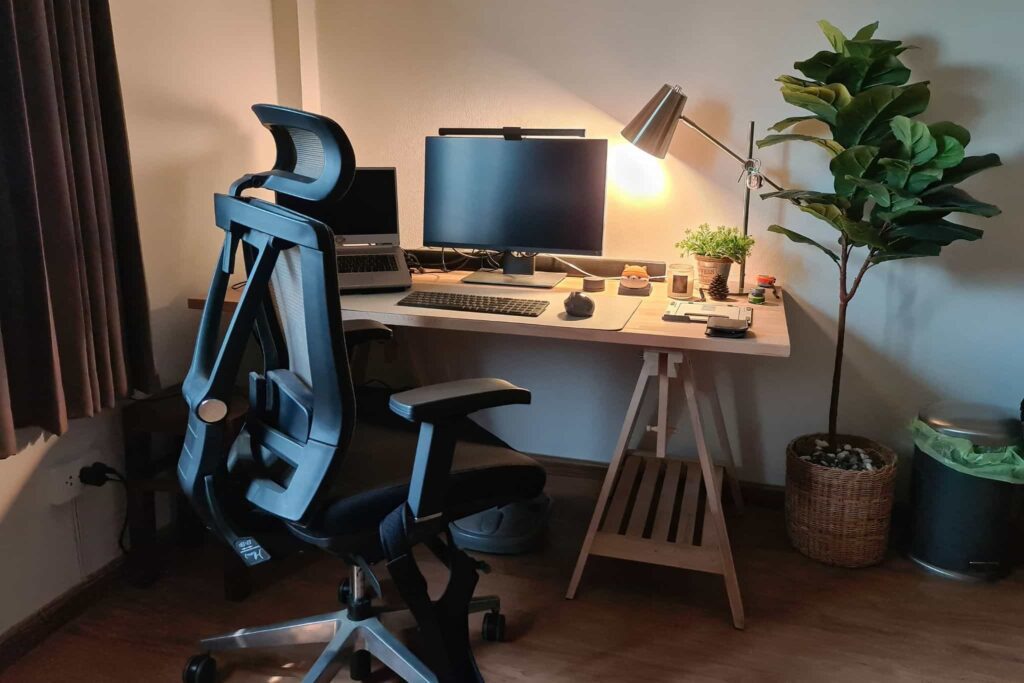
Ergonomic essentials for a home office include a supportive chair with lumbar adjustment, a desk at the right height, and a monitor positioned at eye level. These items work together to maintain proper posture and reduce strain on muscles and joints. A home office ergonomic assessment often highlights the need for accessories like footrests, monitor arms, and adjustable armrests. When combined, these elements create a healthier work-from-home ergonomics setup.
Home office ergonomics is the science of designing a workspace that fits the individual’s body and work style to prevent discomfort or injury. It involves adjusting chairs, desks, monitors, and keyboards to support natural posture. The goal is to minimize physical stress and improve productivity, whether using a desktop or a laptop. Good work from home ergonomics directly contributes to long-term comfort and spinal health.
The ideal posture for working from home keeps the back straight, shoulders relaxed, and elbows bent at a 90-degree angle. Feet should rest flat on the floor, with knees level with or slightly below hips. The top of the monitor should be at or just below eye level to prevent neck strain.
Ergonomics at home reduces the risk of musculoskeletal pain, eye strain, and fatigue caused by poorly designed work setups. A proper home office ergonomic assessment can reveal posture issues that contribute to chronic discomfort. Applying work-from-home ergonomics principles helps maintain energy levels and focus throughout the day.
Managing lower back pain at home starts with improving posture and setting up a supportive workspace. Applying work from home strategies—like adjusting chair height and screen position—also helps. For persistent pain, it’s wise to combine ergonomic changes with gentle strengthening exercises. It’s also recommended to see a physician to assess whether there are underlying conditions involved with your back pain.
At Stamford Office Furniture, we believe a well-designed workspace fuels productivity and well-being. Serving businesses and home offices in White Plains, NY, our team helps clients create environments that blend comfort, style, and functionality. From premium ergonomic chairs to fully adjustable desks, every piece is selected to meet the demands of modern work while supporting healthy posture. Our solutions make daily tasks more comfortable and efficient.
Visit our showroom or connect with our design specialists to bring lasting comfort and smart design into your workspace.